Interface tour
The top of Mirage’s main window is a row of tabs and entry buttons, with the content area for the current tab below. Getting familiar with these areas is enough to get you started.
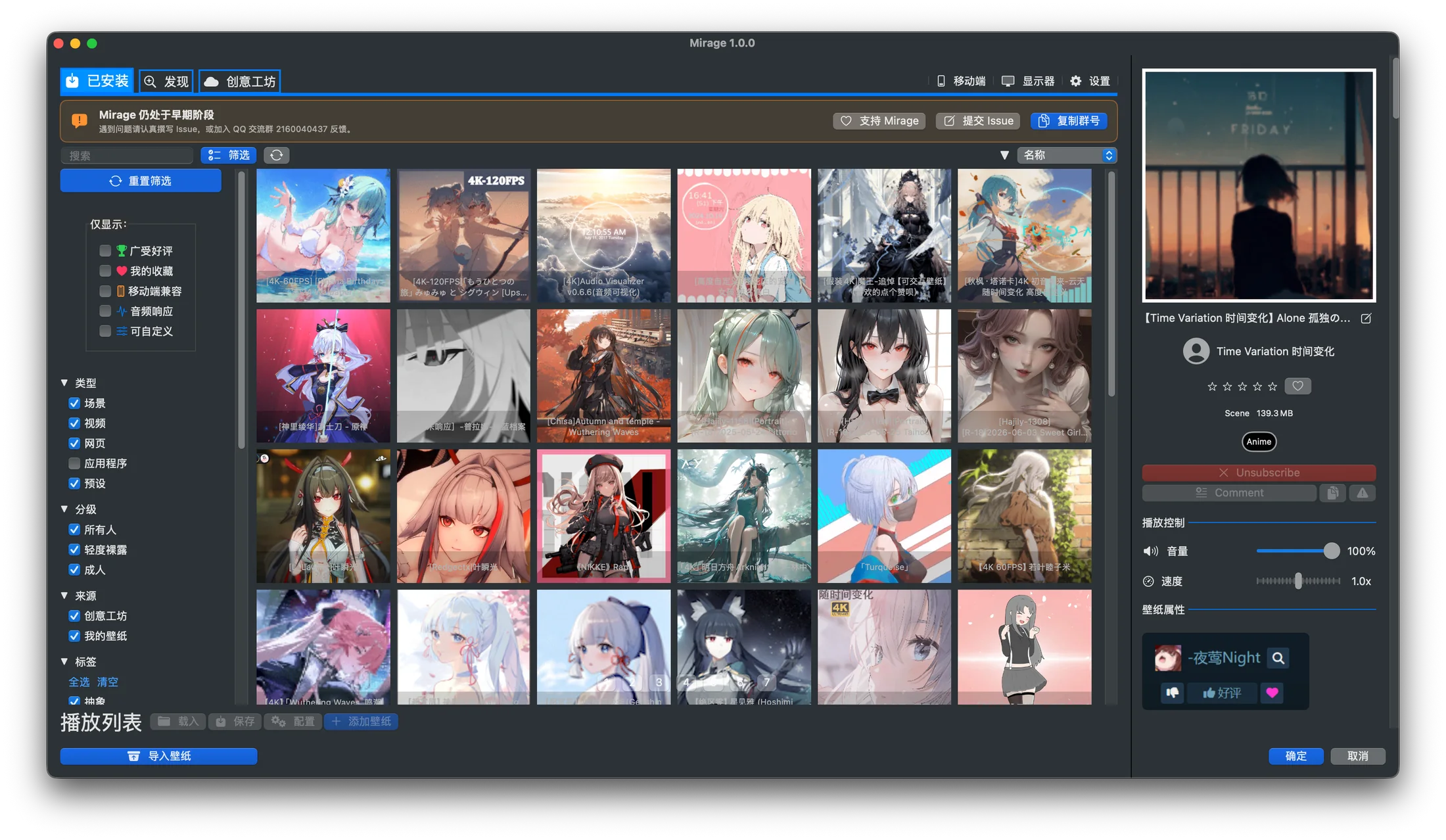
Real interface: the Installed view in the current build. Filters sit on the left, the wallpaper library is in the middle, and the selected work and playback properties appear on the right.
Top tabs
Section titled “Top tabs”The main window has four primary tabs across the top:
- Installed: your local wallpaper library, where you browse, search, filter, and play installed wallpapers. See Wallpaper library.
- Discover: the content discovery page, showing recommendations and category entries.
- Workshop: browse and download from the Steam Workshop. Switching to this tab requires completing the Steam Workshop setup first. When downloads are in progress, a badge on the tab shows the number of active downloads.
- Subscribed: sign in to Steam to load your subscribed Wallpaper Engine items, search them, filter by downloaded status, and queue missing items for download.
There are also a few entry buttons on the right side of the tab bar:
- Mobile: mobile-related entry.
- Displays: opens display settings, where you can assign wallpapers to different displays individually. See Multiple displays.
- Settings: opens the settings window. See Settings in depth.
Wallpaper library toolbar
Section titled “Wallpaper library toolbar”Under the “Installed” tab, a toolbar runs across the top of the content area:
- Search box: filter wallpapers by name and other keywords.
- Filter: expands the filter panel (see below).
- Refresh: appears when “Auto refresh” is enabled in Settings, and re-scans the wallpaper directory.
- Sort direction: toggles between ascending and descending.
- Sort by: sorts by name, rating, or file size.
Filter panel
Section titled “Filter panel”Clicking “Filter” expands a sidebar with a “Reset filters” button at the top, followed by a few groups of conditions:
Show only (multiple selections allowed)
- Highly rated
- My favorites
- Mobile compatible
- Audio responsive
- Customizable
Type
- Scene
- Video
- Web
- Application
- Preset
Content rating
- Everyone
- Mild nudity
- Mature
Tags
Covers the common Wallpaper Engine categories, such as Abstract, Anime, Cyberpunk, Fantasy, Game, Landscape, Nature, Sci-Fi, Pixel Art, MMD, and more. You can “Select all” or “Clear” and then check them freely.
Wallpaper cards and context menu
Section titled “Wallpaper cards and context menu”Every work in the wallpaper library is shown as a card. Once selected, you can adjust playback parameters in the preview and properties panel, and the context menu on the card or empty space offers actions like apply, favorite, and open directory. For playback-related actions, see Apply wallpaper and Playback control.
Menu bar
Section titled “Menu bar”Mirage provides a status icon in the system menu bar, letting you control playback of the current wallpaper without opening the main window. See Menu bar control.