Live Screen Saver
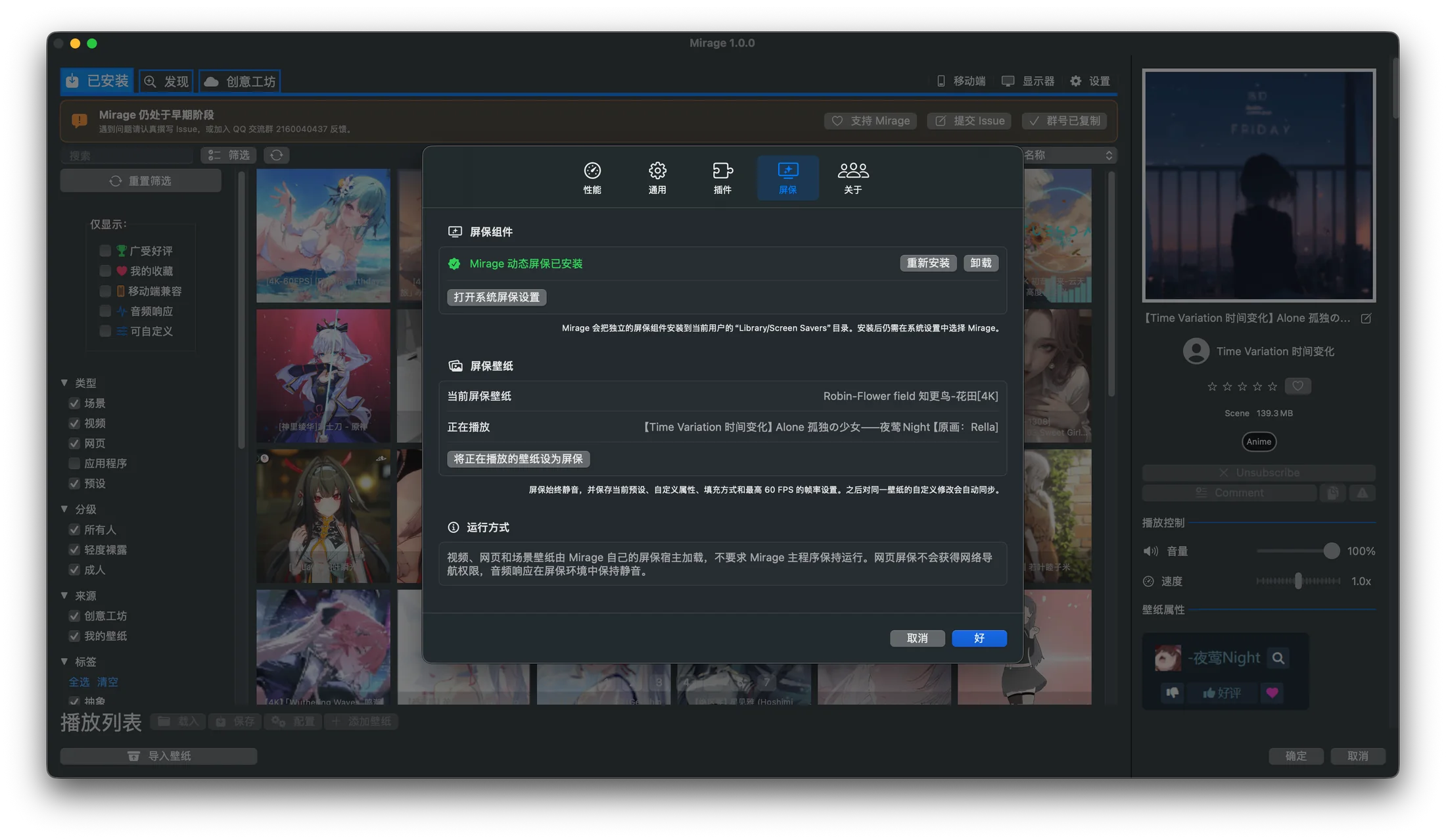
Mirage provides a standalone live screen saver component. In Settings → Screen Saver, you can currently configure video or scene wallpapers as the screen saver; web wallpapers cannot be configured there.
Install
Section titled “Install”- Open Settings → Screen Saver and click Install. The component is copied to
~/Library/Screen Savers/MirageScreenSaver.saverfor the current user. - Click Open System Screen Saver Settings and select Mirage in macOS System Settings.
Updating Mirage.app does not automatically update the copy in the user screen-saver directory. Click Reinstall when needed. Uninstalling removes the .saver only; it does not remove your wallpaper library.
Choose the wallpaper
Section titled “Choose the wallpaper”Set the now-playing wallpaper as screen saver saves the current video or scene wallpaper’s preset, custom properties, fill mode, and frame rate. The screen saver is always muted and capped at 60 FPS. Later customizations to the same wallpaper are synchronized to the screen saver configuration. Its host runs independently, so the main Mirage app does not need to stay open.
Dynamic lock screen
Section titled “Dynamic lock screen”The Screen Saver settings also expose two experimental dynamic lock-screen schemes; only one can be enabled at a time:
- Scheme A: available only on macOS 26 or later. It uses an undocumented system API; enabling it requires typing “我同意” or
Agreein the confirmation sheet and then selecting Mirage in System Wallpaper settings. - Scheme B: available on macOS 14.2 or later. It uses the installed Mirage screen saver to temporarily take over the lock-screen wallpaper slot and restores the previous desktop configuration after unlock. It also relies on an undocumented system configuration format.
Both schemes support video and scene wallpapers only and may stop working after a macOS update. With an unsigned development build, Scheme B may require enabling Mirage under Privacy & Security → Full Disk Access.