Multiple displays
Mirage supports multi-display setups. You can have all screens share a single wallpaper, or assign one to each screen individually.
Opening display settings
Section titled “Opening display settings”Click the Displays button at the top of the main window to open the display settings panel.
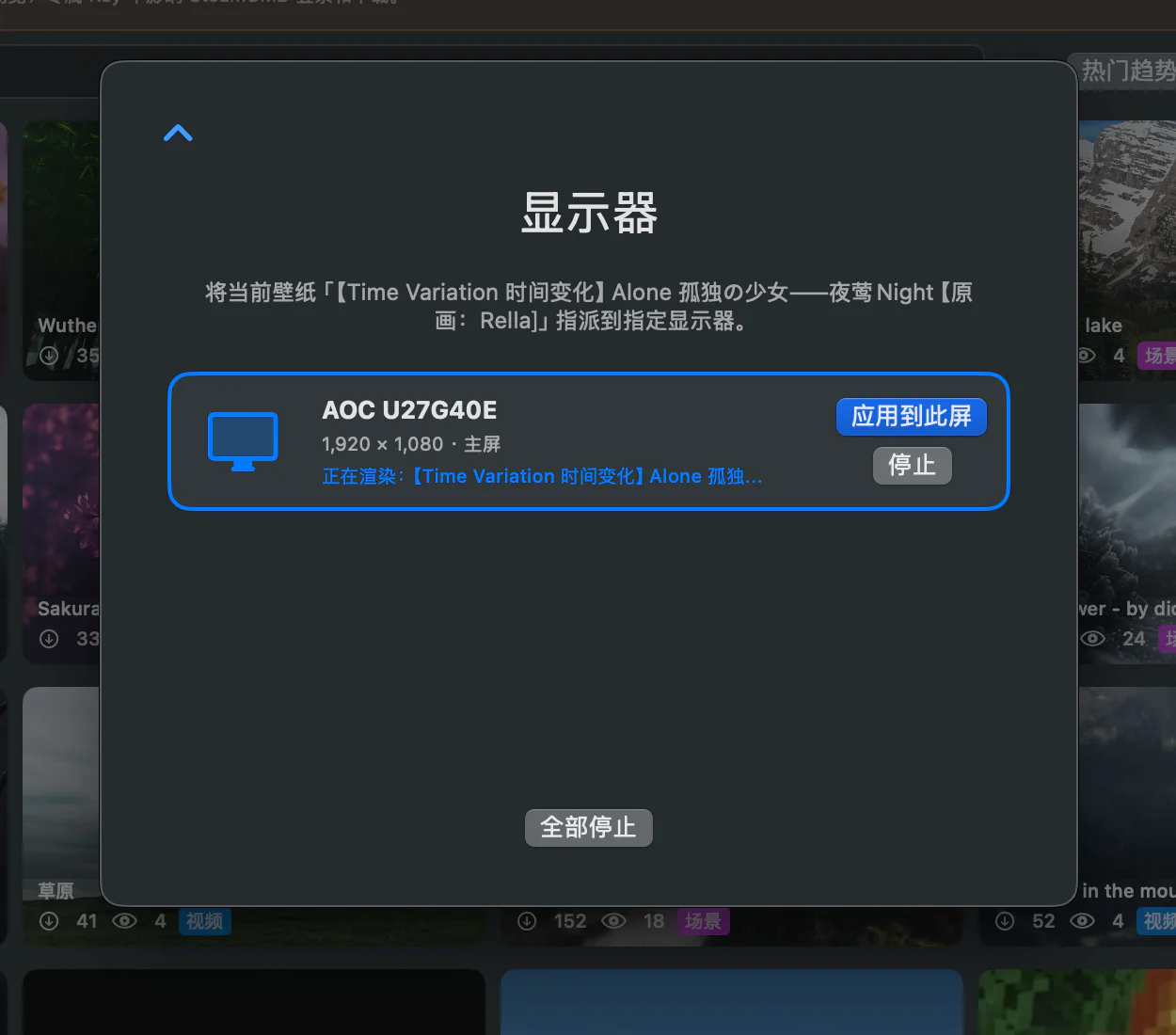
The panel lists the displays currently detected and the wallpaper running on each one.
Cover all displays
Section titled “Cover all displays”Cover all displays applies the current wallpaper to every screen detected. You can trigger it from:
- The display settings in the main window.
- “Cover all displays” in the menu bar.
When covering, each screen starts its own separate renderer instance.
Assigning a wallpaper to a single display
Section titled “Assigning a wallpaper to a single display”Mirage distinguishes displays by “screen number”: the primary display is 0, and the others are numbered in sequence. When you assign a wallpaper to a non-primary display, Mirage starts a separate render process for that screen and applies each wallpaper’s own saved runtime state, such as volume, speed, and fill mode.
This means different screens can play different wallpapers, with each one’s playback parameters independent of the others.
Rendering and resource usage
Section titled “Rendering and resource usage”The wallpaper on each display is handled by its own render process. The more screens you have and the more live wallpapers you run at once, the higher the GPU and memory usage. If you run into stutter or heat, you can lower the quality tier or frame rate in Performance & playback rules, or use the global playback rules to pause automatically in certain situations.
Display changes
Section titled “Display changes”After plugging in or unplugging a display, or rearranging your displays, you may need to re-apply or re-cover the wallpaper to make the new screen configuration take effect.