Workshop Overview
Mirage includes browsing and downloading for Wallpaper Engine Workshop content (App ID 431960).
How it works
Section titled “How it works”- The Steam Web API handles browsing, search, and item metadata. Configure a personal Steam Web API Key for the most reliable browsing.
- Mirage’s embedded Steam service directly depends on SteamKit2 3.4.0 and handles QR or password sign-in, Steam Guard, manifest resolution, and CDN downloads. Its downloader design is informed by DepotDownloader, but Mirage neither bundles nor launches the DepotDownloader executable, and no separate installation is required.
Before you start
Section titled “Before you start”The first-use wizard has three steps:
- Review the Workshop and ownership notice.
- Sign in with a global Steam account that owns Wallpaper Engine. QR sign-in is the default, with password sign-in available as a fallback.
- Finish setup.
After sign-in, the refresh token and Steam Guard device data are stored in the macOS Keychain. See the Setup Wizard and Steam Sign-In.
Browsing and downloading
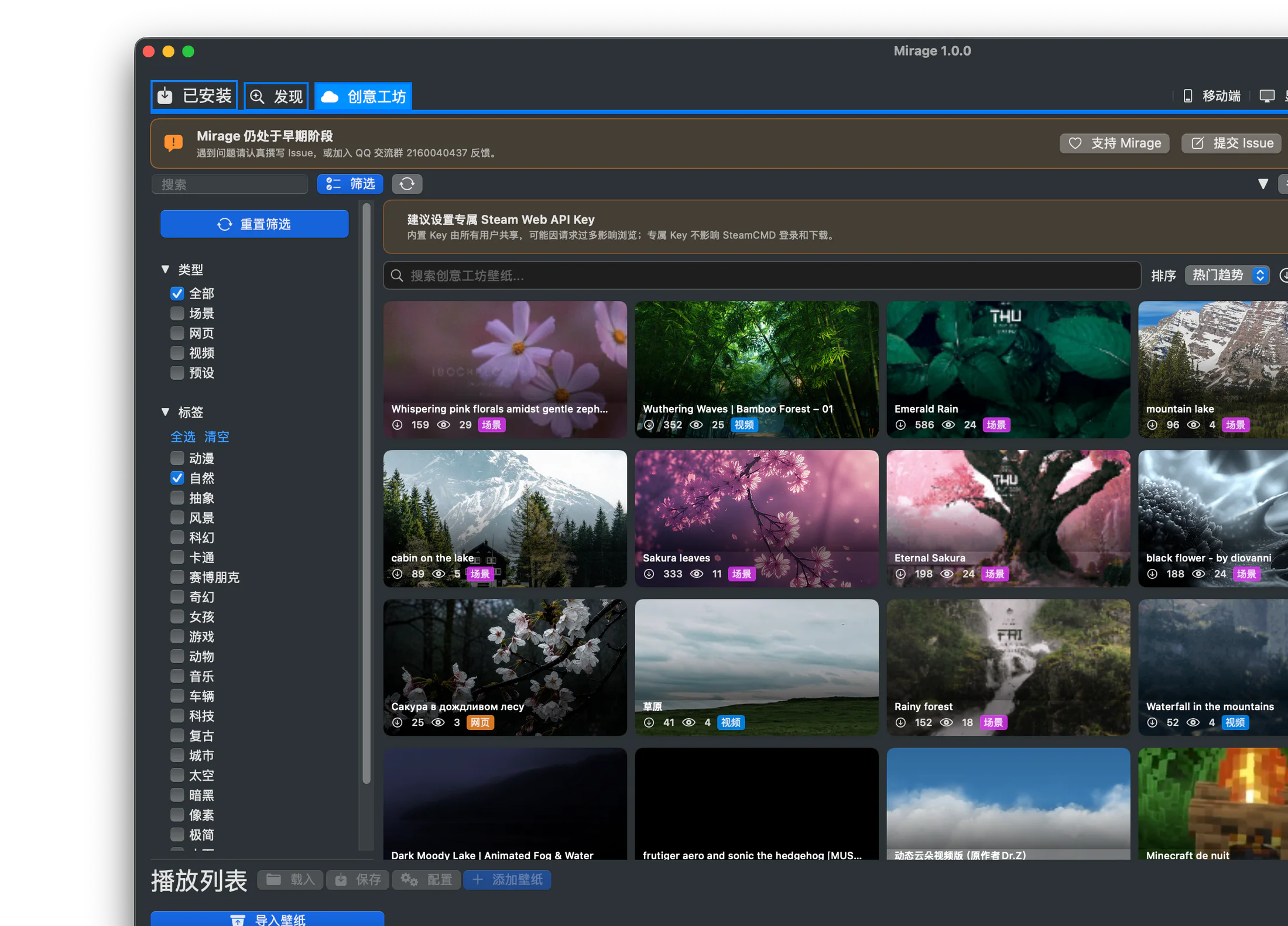
Section titled “Browsing and downloading”You can filter by trend, release time, subscriptions, rating, tags, and content rating. Mirage downloads up to three items concurrently and reports live received bytes, speed, progress, and ETA. Cancelling one task does not interrupt the others.
See Browse the Workshop and Download and Manage.