General and Audio Settings
The “General” section brings together settings for startup, updates, appearance, audio, wallpaper library directories, and the Workshop.
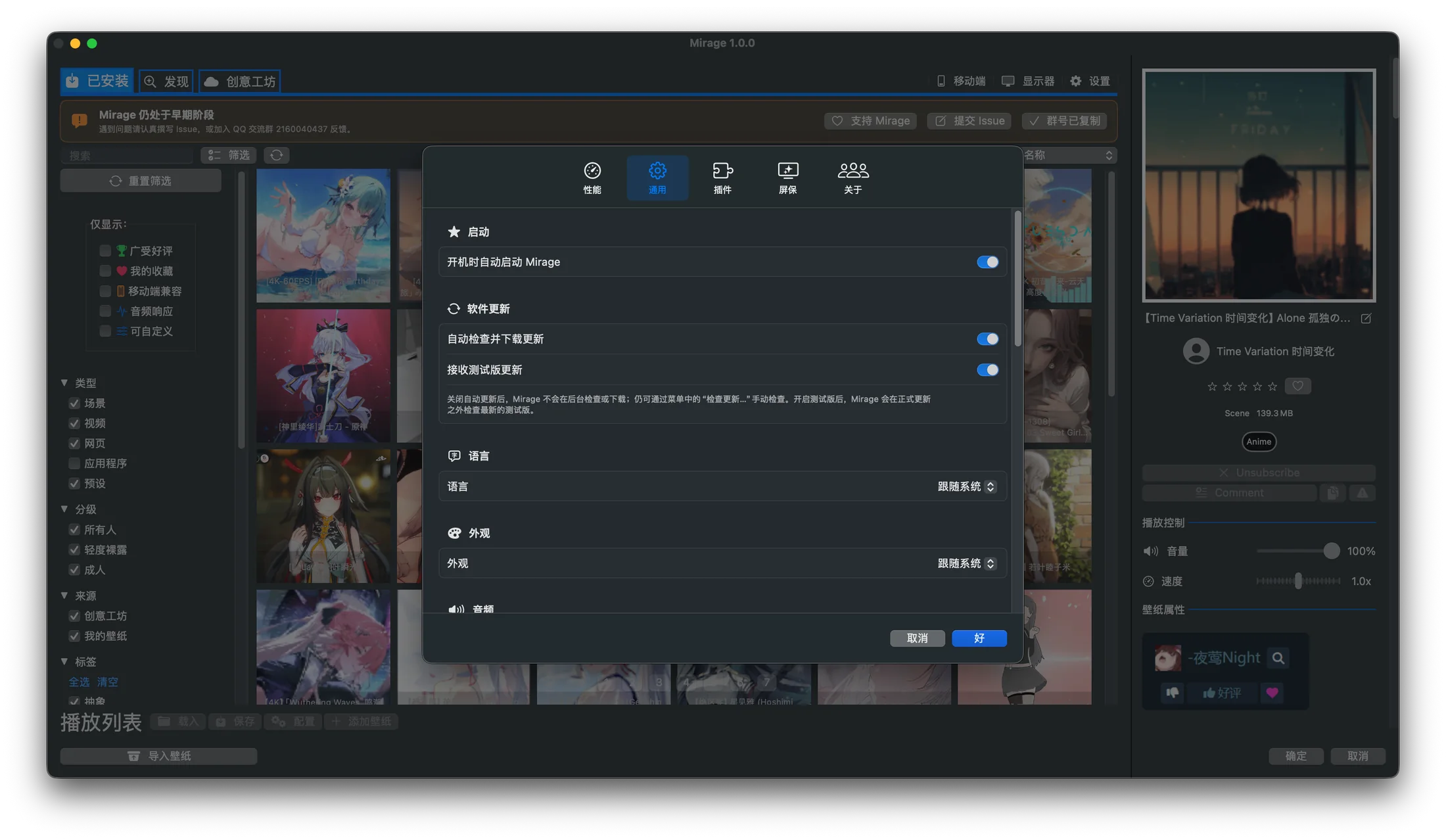
Real interface: the top of General settings, including launch at login, update channels, interface language, and appearance.
Startup
Section titled “Startup”- Launch Mirage at login: automatically runs Mirage and restores your wallpaper after you log in.
Software update
Section titled “Software update”Mirage uses Sparkle to handle updates:
- Automatically check for and download updates: When enabled, checks for and downloads updates in the background. When disabled, you can still check manually with “Check for Updates…” in the menu bar.
- Receive beta updates: In addition to stable updates, also checks for the latest beta builds (rolling builds of the
mainbranch).
Update authenticity is verified by a built-in Ed25519 public key. Each architecture uses its own separate appcast.
Language
Section titled “Language”- System
- English
- 简体中文
- 繁體中文
Appearance
Section titled “Appearance”- Light
- Dark
- System
- Global volume: the master control for all wallpaper volume (0–100%). The final volume combines an individual wallpaper’s volume with the global volume.
- Global mute: mutes all wallpapers in one click.
Individual wallpaper volume and speed are adjusted in Playback controls.
Wallpaper library directories
Section titled “Wallpaper library directories”This lists all the sources Mirage scans for wallpapers. Each entry shows a title, description, and actual path, and lets you:
- Show in Finder: opens the corresponding directory.
- Choose Directory…: sets a custom location for the “Steam Workshop directory” or “Imported wallpaper directory”.
- Restore Default: returns a custom directory to its default location.
The “Mirage download directory” is labeled “Current download location”. For a full explanation of each directory, see Data directories.
There is also:
- Automatically refresh the wallpaper library: When enabled, Mirage rescans directories automatically and shows a refresh button in the wallpaper library toolbar.
Workshop / Steam API
Section titled “Workshop / Steam API”Steam API route (mainland China only)
Section titled “Steam API route (mainland China only)”In mainland China, a route selector appears in Settings:
- Steam official Web API (
api.steampowered.com) - SteamCF mirror
Switching to the mirror shows a warning: the mirror is only accessible to users in mainland China, is not an official Steam service, offers no guarantee of security or availability, and only proxies the browsing API; it cannot speed up Steam sign-in or wallpaper downloads.
Steam Web API Key
Section titled “Steam Web API Key”Enter your own 32-character hexadecimal API key. If it’s unset or in an invalid format, a reminder is shown and Mirage falls back to a shared built-in key. Once a valid key is set, “Dedicated API key set” is shown. The key is only used for local requests to browse Workshop data, so don’t share it. See Steam Web API Key for details.
macOS and Advanced
Section titled “macOS and Advanced”- Adjust menu bar tint: makes the menu bar look more harmonious over a live wallpaper.
- Verbose logging (for debugging): enables more detailed logs to help diagnose problems.
- Reset all settings: restores all settings to their defaults (red button, use with care).