
Performance and Playback Strategy
The “Performance” section controls playback rules, render quality, preview animation, and video output.
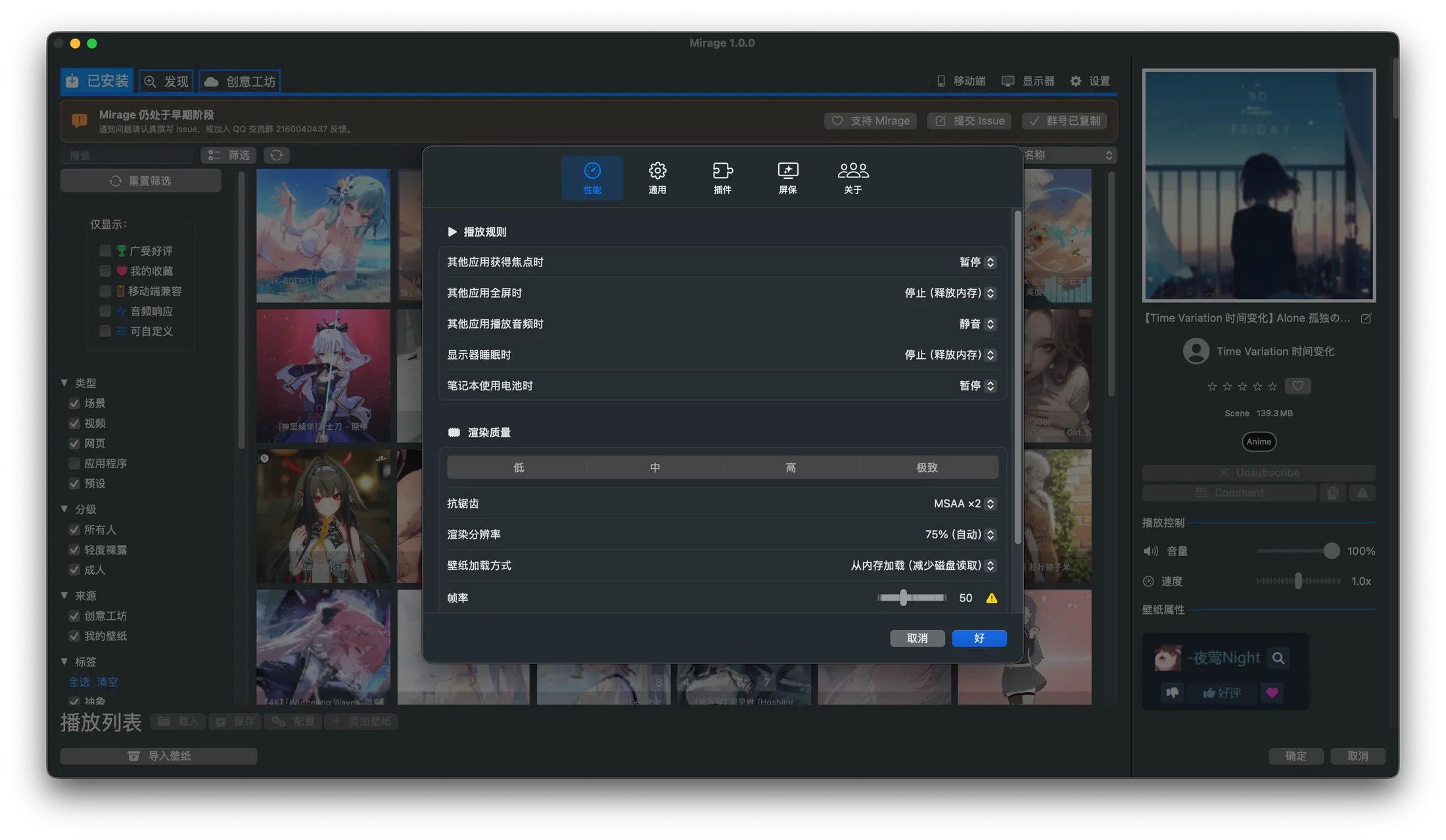
Real interface: performance settings control both system-triggered playback behavior and scene-wallpaper render quality.
Playback rules
Section titled “Playback rules”Mirage continuously monitors system state and automatically changes wallpaper playback behavior in the situations below. Each item can be set to its own action.
| Trigger | Available actions |
|---|---|
| Another app gains focus | Keep running / Mute / Pause |
| Another app is full screen | Keep running / Mute / Pause / Stop (free memory) |
| Another app plays audio | Keep running / Mute / Pause |
| Display goes to sleep | Keep running / Pause / Stop (free memory) |
| Laptop runs on battery | Keep running / Pause / Stop (free memory) |
| A window covers more than the threshold | Pause when enabled; threshold 1%–100% |
What the actions mean:
- Keep running: playback is unchanged.
- Mute: keeps playing but muted.
- Pause: freezes the frame (
speedset to zero). - Stop (free memory): fully stops the render process to free RAM and VRAM.
Multiple triggers at once
Section titled “Multiple triggers at once”When multiple triggers are met at the same time, Mirage applies the strongest action. The order from weakest to strongest is: Keep running < Mute < Pause < Stop. For example, if you’re on battery and another app is full screen, set to “Pause” and “Stop” respectively, Mirage actually performs “Stop”.
Render quality
Section titled “Render quality”The quality options mainly affect scene wallpapers (SceneWallpaper).
Quality presets
Section titled “Quality presets”A row of preset buttons applies a whole set of quality parameters in one click: Low / Medium / High / Ultra. They simultaneously adjust anti-aliasing, post-processing, texture resolution, reflections, and frame rate. After choosing a preset you can still fine-tune the individual options below.
Other render controls
Section titled “Other render controls”- Render resolution: native, 75% automatic, or 50% high performance.
- MetalFX (scene wallpapers): enable MetalFX upscaling where supported.
- Wallpaper loading: load from disk for lower memory use, or memory to reduce disk reads during playback.
- Animated previews: play on hover or keep visible previews playing.
Anti-aliasing
Section titled “Anti-aliasing”- Off
- MSAA ×2
- MSAA ×4
- MSAA ×8
Anti-aliasing takes effect after switching wallpapers.
Frame rate
Section titled “Frame rate”The frame rate is adjustable between 10 and 120 and takes effect in real time.
- Above 30, a note warns that a higher frame rate increases power draw.
- Above 60, a red warning appears, as an excessively high frame rate significantly increases power draw and resource usage.
For most live wallpapers, 30 FPS is smooth enough and more power-efficient.
Audio spectrum
Section titled “Audio spectrum”“Enable audio spectrum (scene and web wallpapers)” controls whether audio spectrum data is provided to those renderers for audio visualization.
Enable HDR video asks the video renderer to use HDR dynamic range when the source, display, and macOS support it.
Related settings
Section titled “Related settings”- Global volume and global mute are in General and audio settings.